Physical Address
Bankura, West Bengal 722142
Physical Address
Bankura, West Bengal 722142

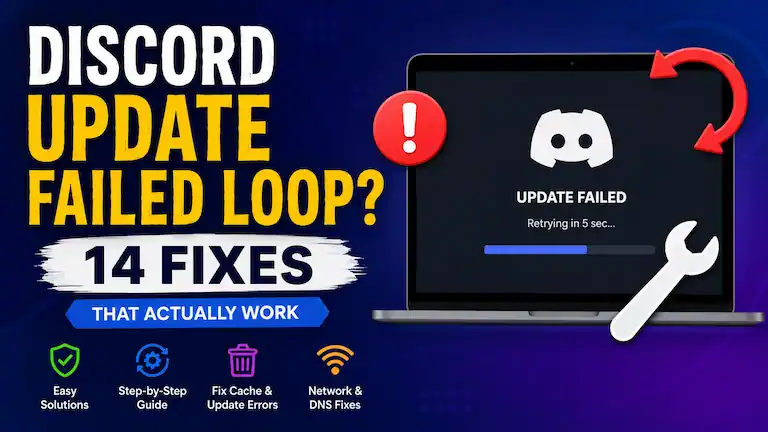
Are you stuck staring at a grey window because of the Discord Update Failed Loop error? It is a huge headache. You just want to launch the app and talk to your gaming group, but the timer keeps restarting. Most basic tips online tell you to reboot your router. Sadly, that almost never fixes the problem.
We spent time testing real answers from the community to find out what actually stops this endless cycle. Below, we list 14 proven steps that force the app to load properly. We included everything from a quick folder trick to a deep network reset. Just follow these easy instructions, and you will be back in your voice channels in no time at all.
Discord runs a quick check for new updates each time you click the icon. Usually, this happens in a flash, and you are ready to chat. But when you see that timer stuck on a loop, one of these three things is almost always at fault:
We know exactly what is causing the headache, so let’s get your app fixed.
Work through these steps in order. These are the fastest, easiest detours to get you back online.
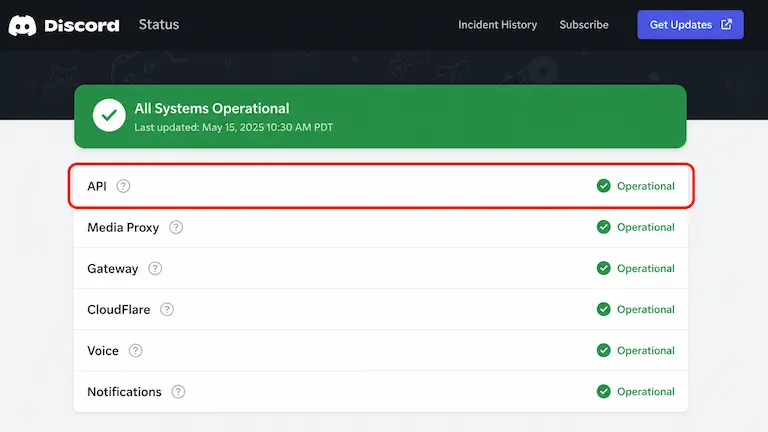
The Pre-Flight Check.
If Discord’s main servers are down, no amount of local file deletion will fix the loop. You must check this before touching any system files.
The Storage Check.
You might think Discord is a small app, so it does not need much space. But, Discord updates download as squeezed files called “delta packages.”
To open these files, Discord actually needs up to 2 GB of free space on your C:\ drive for a little while. If your hard drive is totally full, the update just stops without telling you why, and this starts the endless loop.
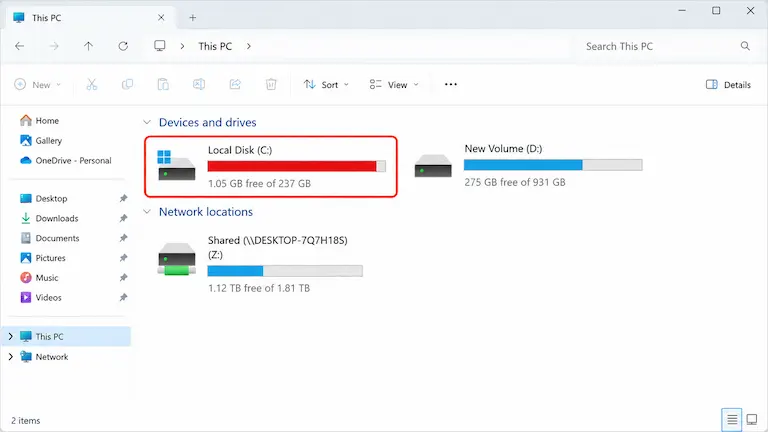
The Fix: Open File Explorer, look at your C:\ drive, and delete some big files or old downloads. Just make sure you have at least 2 GB of free space before you try to open Discord again.
(Temporary Bypass)
Gamers are usually in a hurry to join a game or voice call. If you do not have time to fix the problem right now, this is your 60-second rescue.
Discord offers official test versions called Discord PTB (Public Test Build) and Discord Canary. Because these versions save into totally different folders on your computer, they completely ignore any broken files stuck in your normal Discord folder.
The Updater Shortcut.
When the main update screen is stuck in a loop, the actual Discord app file is usually sitting safely inside a hidden folder. This trick completely skips the broken updater.
%localappdata% and press Enter.app-1.0.9172) and open it.Discord.exe file inside this folder and double-click it.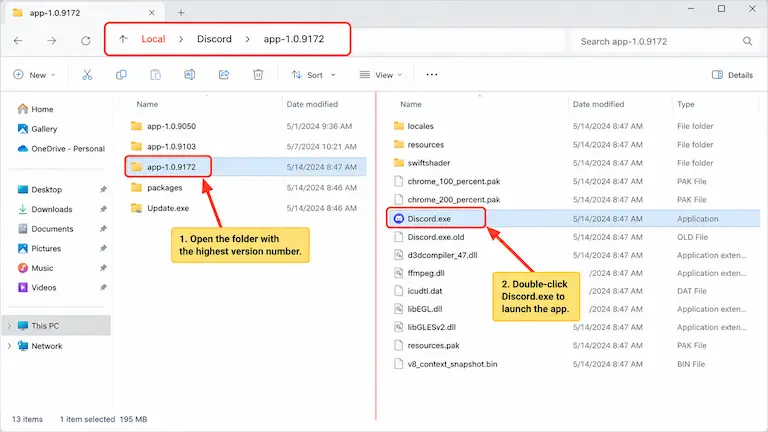
This opens the app directly and totally ignores the update loop.
The Name Trick.
If the update file is broken, it will just keep failing. By changing the file’s name, Discord will think the updater is missing. It will then download a brand new, working file right from the internet.
%localappdata% and press Enter.Update.exe.UpdateX.exe.Running a program as an Administrator lets it change files on your PC. But, many users on Reddit say that running Discord as an Admin is actually what started their endless loop.
The Fix is a simple switch:
The ‘Squirrel.exe’ File Lock.
Corrupted temporary files are a massive cause of infinite loading screens. However, Discord’s updater framework is actually called Squirrel. Even if Discord is closed, background processes named Update.exe or Squirrel.exe often keep the files “locked”. If you try to delete the folder while these run, Windows throws a frustrating “Folder in use” error.
Ctrl + Shift + Esc to open Task Manager.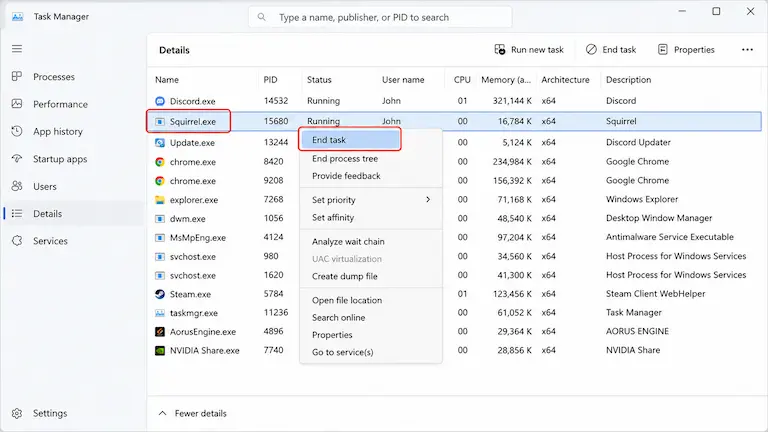
Windows Key + R, type %appdata%, and press Enter.Windows Key + R again, type %localappdata%, and hit Enter.Big tech blogs often forget about Mac! To clear your Discord cache on an Apple computer, open Finder, press Command + Shift + G, and type ~/Library/Application Support/discord/. Delete this folder to get the exact same fresh start.
Note: Doing this will sign you out of Discord. You will need your email and password to log back in.
If you have tried the basic fixes above and the update is still stuck, your problem might be a little deeper. Here are the tested ways to fix a stubborn Discord Update Failed Loop that just will not stop.
The Security Check.
Sometimes, strong antivirus programs think a safe Discord update is a bad file. Many Reddit users say that the update loop happens because programs like Kaspersky or Windows Defender are quietly blocking the connection.
The Full Network Reset.
Sometimes, the internet connection your service provider gives you is blocking Discord’s update server. Just refreshing your current connection will not help if the server itself is the problem. You need to switch to a better server before you refresh.
ncpa.cpl, and press Enter to open your Network Connections.8.8.8.8. In the bottom box (Alternate), type 8.8.4.4. (These are Google’s safe public servers). Click OK.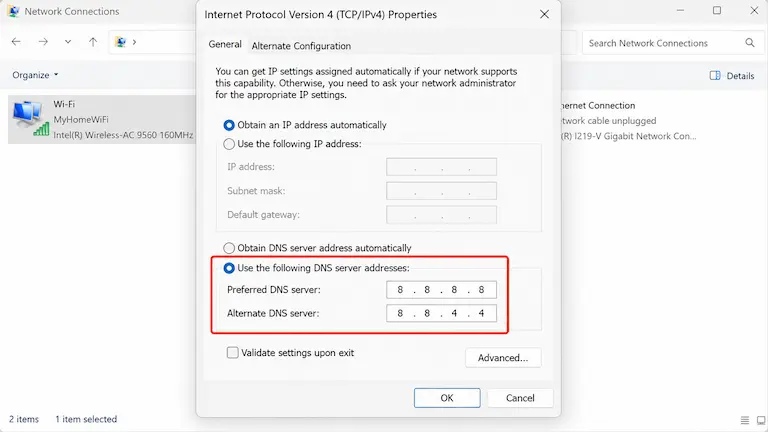
cmd, right-click on Command Prompt, and choose Run as Administrator.ipconfig /flushdns into the black box and press Enter.Sometimes Windows proxy settings silently intercept the update ping from Discord. Turning this off allows a direct connection.
Windows Key + R to open the Run command.inetcpl.cpl and hit Enter.When standard file deletions fail, booting into Safe Mode stops any hidden background apps from interfering with Discord.
Windows Key + R, type msconfig, and hit Enter.msconfig again, uncheck Safe boot, restart your PC normally, and the loop will magically be broken.Advanced Network Fix.
This is a massive hidden cause that top blogs miss entirely. Discord requires modern security protocols to connect to its servers. If Windows has deactivated certain cryptographic protocols, the update will loop silently.
Windows Key + R, type inetcpl.cpl, and hit Enter.If all else fails, don’t jump to a full uninstall just yet. The Reddit community highly recommends a “Dirty Install.” This forces the updater to overwrite the broken loop while keeping you logged in.
The Fresh Start.
If you have tried all 13 steps above and you are still stranded, the entire application file structure is too corrupted. You need a full clean start.
%appdata% and %localappdata% Discord folders) to remove leftover junk.Not sure which path to take based on your specific system? Use this interactive diagnostic flowchart to pinpoint exactly which fix your system needs based on the exact errors you are seeing.
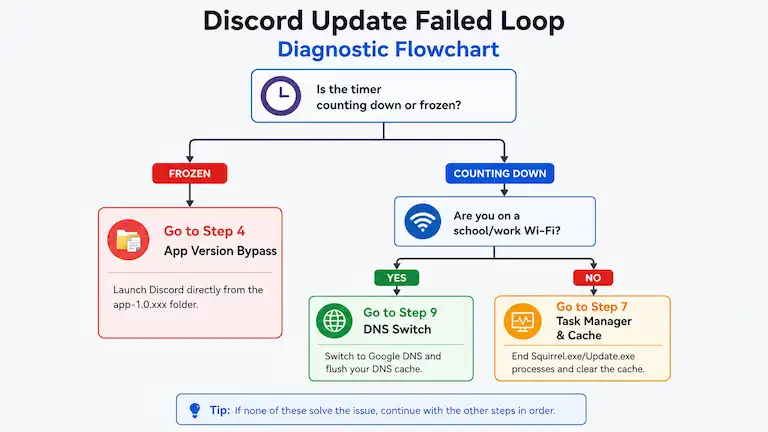
Instead of guessing what works, we looked at tips from real users who fixed this problem:
%localappdata%/Discord/app-1.0.xxx folder is the fastest way to skip the Discord Update Failed Loop completely.Fixing the loop is great, but preventing it from ruining your next gaming session is even better. Here is how to keep your Discord travel itinerary smooth for the long term:
By following this guide, you should be out of the loop and back in your voice channels. If you found this guide helpful in solving your software roadblocks, bookmark this page for your next digital expedition!
This usually means Discord does not have permission to change files on your computer. Windows might be blocking it. Other common causes include a full hard drive, a strict antivirus program, or corrupted cache files left over from older updates.
The easiest way is to skip the broken updater completely. Press Windows Key + R, type %localappdata%, and find the Discord folder. Delete the Update.exe file inside. You can also just open the folder named app- (followed by some numbers) and double-click the Discord app inside it to launch it directly. If that fails, try starting your PC in Safe Mode.
Discord uses a hidden program called Squirrel to download and apply updates. Sometimes, another app on your computer locks the old Discord files in place. When this happens, Squirrel cannot replace them with the new files. It will not give you an error message. It just fails, deletes the downloaded file, and tries again in an endless loop.
Look at the bottom right corner of your screen near the clock. Right-click the small Discord icon and click Check for Updates. If the Discord window is already open on your screen, you can press Ctrl + R (Cmd + R on Mac). This refreshes the app and forces it to look for patches. If the screen is completely frozen, close Discord using Task Manager and open it again.
This happens when leftover files from an old Discord install block the new one. You need to delete those old files first to get a clean slate.
Windows Key + R, type %appdata%, and delete the discord folder.%localappdata%.DiscordSetup.exe file you downloaded and select Run as administrator.If the installer still crashes after doing this, you might need to download the latest Microsoft .NET Framework or run the installer while your PC is in Safe Mode.
About the Author: As the publisher behind buzbusiness.com, I don’t just rewrite manuals—I spend my time researching, testing, and fact-checking complex technical bugs. With a deep background in troubleshooting software errors—from fixing endless update loops to resolving stubborn game client crashes—I focus on finding real, verified solutions to the internet’s most frustrating roadblocks.